How to Migrate WordPress Site to New Host? 7 Powerful Steps
Introduction
Moving your WordPress site to new host can seem like a daunting task, but it can be done with ease if you follow the steps. A good website migration guarantees that your website content, design and SEO are not lost during the transition, whether you are upgrading your website for greater speed or changing hosting providers.
In this tutorial, you will learn WordPress site to new host with images guide style explanation and you can follow each step easily as a WordPress beginner.
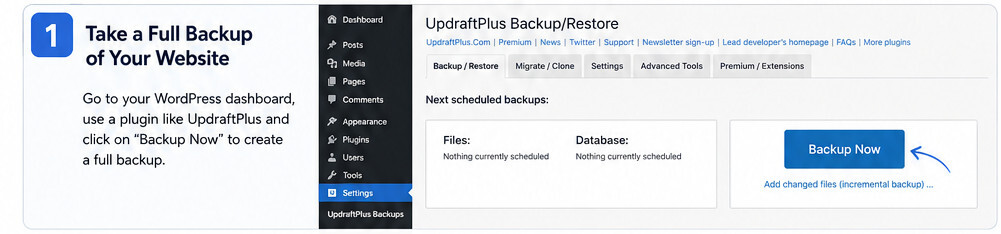
1. Full Backup of Your Website
The first and most crucial task on the road to migration is to make a complete backup.
You must back up:
- WordPress files
- Database
- Themes and plugins
There are plugins such as UpdraftPlus.
2. Copy the files to your computer
Make a backup and download everything to your computer.
Make sure you save:
- Database file (SQL)
- Media uploads
- Theme folder
- Plugin folder

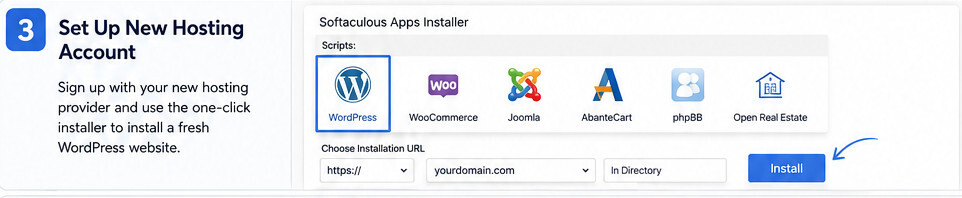
3. Set Up New Hosting Account
Log in to your new web host and install a new WordPress site.
The following is offered by most hosting companies:
- One-click WordPress install
- Free SSL setup
- Domain connection tools
4. Upload WordPress Backup to your new host
Then push your backup files up to the new server.
You can use:
- File Manager
- FTP (FileZilla)
- This is a backup/restore tool that allows you to host it.

5. Import Database to New Server
All posts, pages and settings are stored in your database.
Steps:
- Open phpMyAdmin
- Create a new database with this name.
- You can import the SQL backup file.

6. Update the wp-config.php File
Changes to the database information need to be made in your WordPress configuration file.
Edit:
- Database name
- Username
- Password
- Host

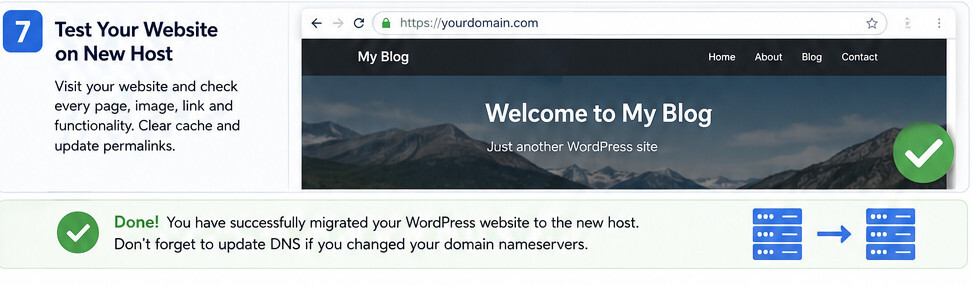
7. Test Your Website on New Host
Once it’s migrated, test your site thoroughly.
Check:
- Pages loading correctly
- Images working
- Links functioning
- SSL certificate active
It is also possible to clear permalinks and cache.
Important SEO Tips After Migration
So as not to hurt your rankings:
- If you will be changing the URL, make sure to set up 301 redirects.
- Add new Sitemap to Google Search Console
- Monitor indexing status
- Look for any broken links.
This will help you maintain a steady SEO performance.
Common Mistakes to Avoid
- Not taking full backup
- Missing database import
- Incorrect wp-config settings
- Forgetting to update DNS
- Failure to test website following migration.
Prevention of these pitfalls means smooth migration.
Read this Blog: 7 Biggest Google SGE Impact on SEO Industry
Conclusion
It is crucial to learn how to move a WordPress site to new host. Moving your site to another, with the correct backup, transfer and configuration, you can do it without losing data or rankings in SEO.
For those who are new to the process, tools such as UpdraftPlus can help make it easy.
Be sure to follow each step of this guide precisely and your site will be up and running on the new host.
Is WordPress migration to a new web host safe?
Yes, but as long as you’ve done the proper backup and migration steps.
Does migration impact on SEO?
No, provided it is done correctly, properly redirected, and the sitemap is submitted.
Do you have a WordPress migration plugin?
Yes, however, plugins such as UpdraftPlus make it a lot easier.
What is the duration of migration?
Typically takes 30 minutes to a few hours depending on site size.
You may also like
by Google AdSense

Issac Lee is the founder of WPlaybook and Statistics Playbook, a data analytics education brand. Since 2021, he has built and operated online businesses, produced more than 500 videos, and created and sold courses and digital content in collaboration with companies. He currently manages the development, SEO, and content operations of more than 40 business websites and specialist blogs. His work focuses on WordPress funnels, technical SEO, content strategy, community-led monetization, and sustainable online business.
View all posts by Issac Lee