4 Powerful Ways to Duplicate a Page in WordPress Easily (Beginner’s Guide)
Introduction
If you’re building a WordPress site, it’s common that you will need to use the same page layout repeatedly. You don’t need to start from scratch, but duplicate a page in WordPress.
This is great to use for landing pages, blog templates, product pages, and service pages. This is time-saving, flow efficient and design consistent.
If you’re a beginner, you’ll see some methods in this guide for easily to duplicate a page in WordPress.
Why you need to duplicate a page in WordPress?
There are several reasons why it is beneficial to duplicate a page in wordpress:
- You wish to use an existing layout
- You are creating similar landing pages
- You’d like to test changes without impacting the actual page
- You will have to have a consistent design throughout the various pages.
Duplicating a page is a faster and smarter way to deal with the task of rebuilding work.
Method 1: Duplicate a Page Using a Plugin (Easiest Way)
The easiest method to duplicate a page in WordPress is with the help of a plugin. The most popular plugin for doing this is Yoast Duplicate Post (also called Duplicate Post plugin).
Steps:
Install the plugin:
- Log in to your WordPress site admin.Visit your WordPress admin area.
- Click on Plugins > Add New
- Look for “Duplicate Post”.
- Copy and install it and enable it.
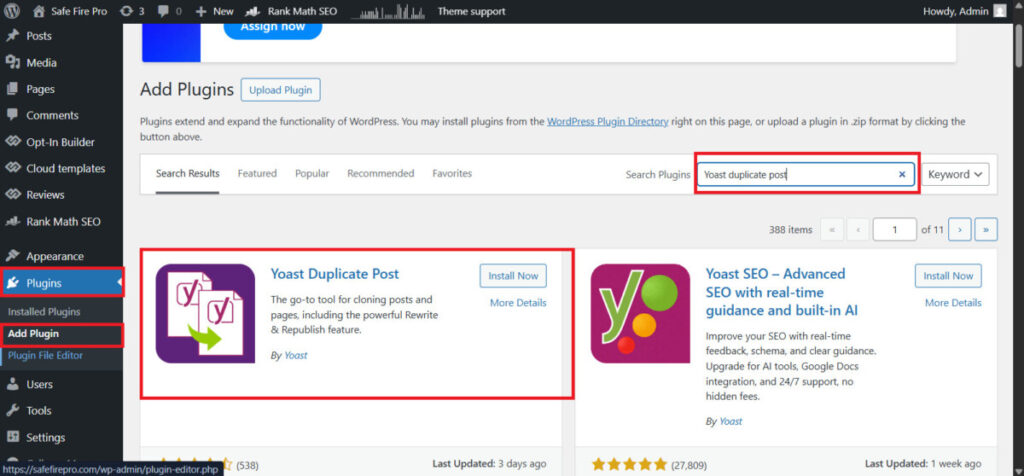
After activation:
- Click on Pages > All Pages
- Hover your mouse over the page that you want to duplicate.Hover your mouse over the desired page to duplicate.
- Click on “Clone” or “Duplicate”
A fresh copy will be displayed immediately.
Benefits:
- Quick and easy to learn,
- No coding required
- Works with posts and pages.
Method 2: Copy a Page from Gutenberg Editor
Content can be duplicated manually if you’re using the Gutenberg block editor.
Steps:
- Open the page you want to copy.Open desired page.
- Click on 3 dots menu (top right).
- Click on “Copy all blocks”
- Create a new page
- Once you have copied the blocks, paste them.
This technique is especially helpful if you’re not ready to add additional plugins.
Benefits:
No plugin needed
Complete control of what is contented.
Uses the WordPress default editor to work on the content
This is an advanced method to duplicate a Page manually.This is the manual method of duplicating a Page (Advanced Method)
Method 3: Duplicate a Page Manually (Advanced Method)
Steps:
- Open the page you wish to duplicate.Open the page that you want to duplicate.
- Change to Code Editor mode.
- Copy everything that has been written in HTML.
- Create a new page
- Copy and paste the code and publish.
It’s the best solution for users familiar with WordPress structure.
Benefits:
- No plugin required
- Lightweight approach
- Full customization control
- A unique page can be duplicated via Page Builders as well.
Method 4: Duplicate a Page Using Page Builders
Steps in Elementor:
Open page in Elementor
Click the arrow next to Update button
Select Save as Template.Select Save as Template.
Use the template for new pages.
This method is ideal for landing pages and sales pages.
Benefits:
- Ideal for pages that are design-focused.
- Stores layout as a template to be reused.
- Very fast workflow
Best Practices After Duplicating a Page
Once you’ve made a copy of a WordPress page, you should always:
- Change the title on the page.
- Update URL (slug)
- Modify SEO meta description
- Get rid of duplicate content problems
- Include links that connect to other pages within the website if necessary.
This will keep your website SEO-friendly and prevent any duplicate content issues.
Common errors to be avoided
Here are some mistakes that many newbies do:
- Having duplicate SEO titles is a problem.
- Not updating Meta descriptions.
- Cloning pages without any content changes.
- Producing too many duplicate pages
With these pitfalls avoided, you can keep your site quality and ranking.
The SEO impact of duplicating pages is a crucial factor to consider
Duplicating pages, just by themselves, doesn’t harm the SEO, when done properly. But if you post the same content with no modifications, Google could view it as duplicate content.
To stay safe:
- Always edit text following a copy and paste operation
- Use a different heading and text for each.
- Optimise each page for a different keyword phrase
That means, duplication is not a risk factor for SEO, but it is a productivity factor.
Must read this blog: How to Add a WordPress Table of Contents (Kadence WPlaybook ALL100 Theme)
Conclusion
Copying a page in WordPress is a simple yet powerful ability. You can use any plugin like Yoast Duplicate Post, Gutenberg editor, or page builders, but each of these will save you time and enhance workflow.
For beginners, plugins are the simplest way, for advanced users manual and builder-based methods are preferable. The lesson to be learned: Always edit duplicated content before publishing.
Is it possible to copy a page in WordPress without a plugin?
Yes, it’s possible to use Gutenberg editor or copy/paste method.
Can I duplicate pages in WordPress?
Yes, it is safe provided that you edit the content before publishing.
Which plugin do you use to duplicate pages?
The Duplicate Post plugin is the most popular and easy-to-use one.
Duplicate pages will it impact SEO?
No, unless you publish identical content without changes.
You may also like
by Google AdSense

Issac Lee is the founder of WPlaybook and Statistics Playbook, a data analytics education brand. Since 2021, he has built and operated online businesses, produced more than 500 videos, and created and sold courses and digital content in collaboration with companies. He currently manages the development, SEO, and content operations of more than 40 business websites and specialist blogs. His work focuses on WordPress funnels, technical SEO, content strategy, community-led monetization, and sustainable online business.
View all posts by Issac Lee