How to Add Google Preferred Sources to WordPress
Want to display an Add as a preferred source on Google button on your WordPress posts? You do not need a dedicated plugin. Add the generated code once, and the button can appear automatically before or after the content on every single post.
Before you begin
- Your WordPress site’s canonical homepage URL
- A way to add code to the site-wide footer
- One public post for testing
What is Google’s Preferred Sources button?
When a visitor selects your site as a preferred source, your relevant and timely content may appear more prominently in that visitor’s Top Stories and other supported Google Search experiences. The button does not guarantee rankings or visibility. It simply gives loyal readers an easy way to tell Google that they want to see more from your site.
Google recommends using its official JavaScript button. WPlaybook’s free generator packages that script so it can be placed automatically on WordPress posts. See the official Google Search Central Preferred Sources documentation for eligibility and feature details.
1. Generate the WordPress installation code
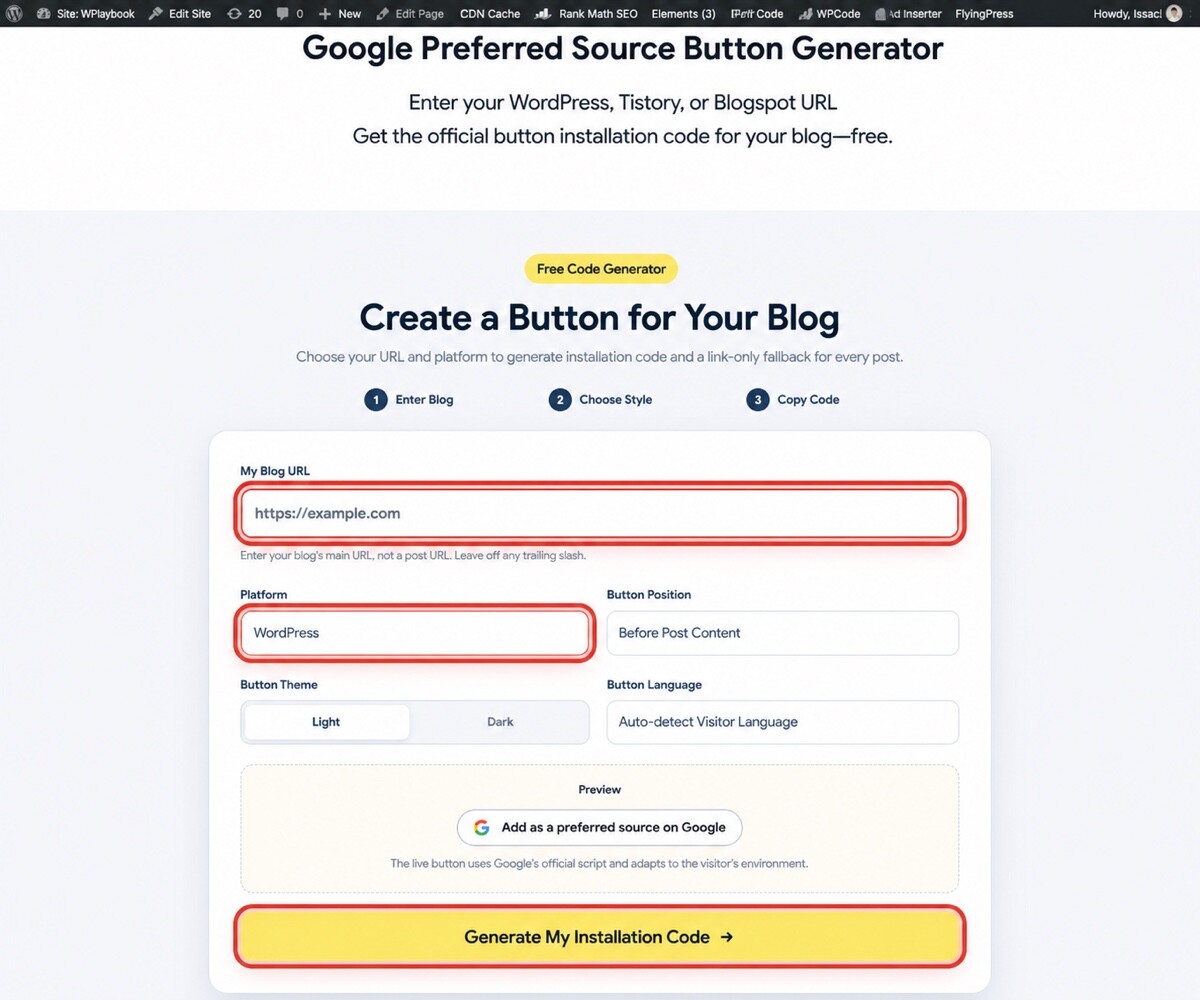
- Open the Google Preferred Sources Button Generator.
- Enter your site’s homepage URL. If you paste a post URL, the generator will extract the domain.
- Select WordPress as the platform.
- Choose whether the button should appear before the post or after the post.
- Select a light or dark theme and choose the button language.
- Click Generate My Installation Code and copy the recommended code in full.
2. Install it site-wide with WPCode

WPCode Lite is a free plugin for managing HTML and JavaScript snippets inside WordPress. A snippet manager or your theme’s custom-script feature is generally safer than editing theme files directly because your code is less likely to disappear after a theme update.
- In WordPress, go to Plugins → Add New Plugin.
- Search for WPCode, install it, and activate it. Skip this step if your theme or another plugin already provides a site-wide footer-code area.
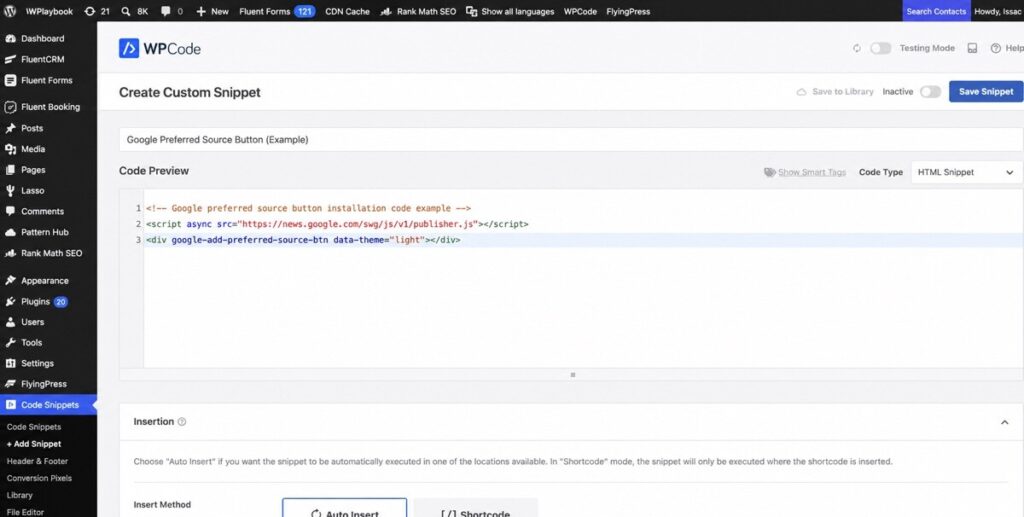
- Go to Code Snippets → + Add Snippet and click Use snippet under Add Your Custom Code.
- Add a title, select HTML Snippet as the code type, and paste the complete code from the generator into Code Preview.
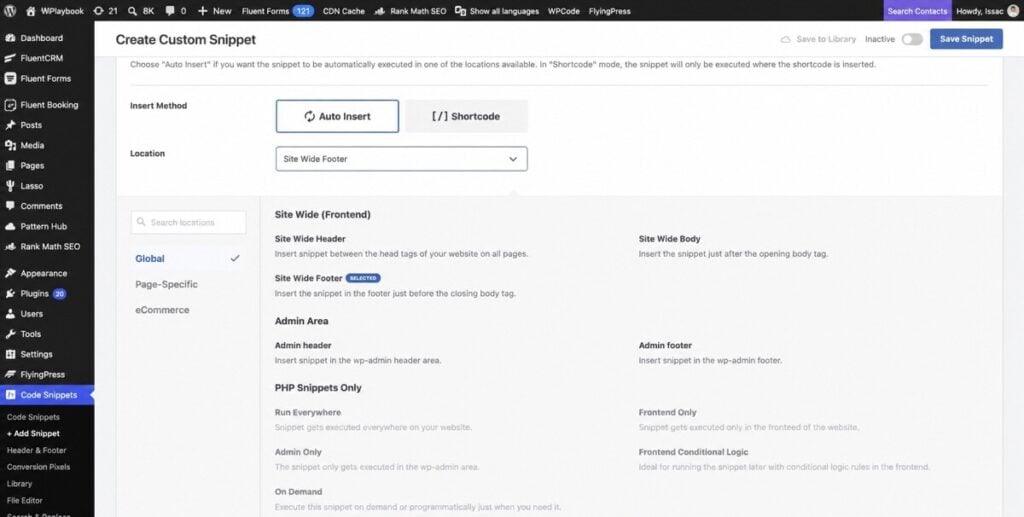
- Set Insert Method to Auto Insert and Location to Site Wide Footer.
- Review the snippet while it is inactive, switch it to Active, and click Save Snippet.
3. Verify the button on a live post
Open a public post as a regular visitor. The generated WordPress code runs only on single-post views, not archives, search results, or admin screens. It also checks for an existing button to prevent duplicate output if the snippet is loaded more than once.
Clicking the button opens Google’s source-selection screen. The site hosting the button is the site the visitor can select. The URL entered in the generator is used to validate the domain and provide a fallback link.
If the button does not appear
- Clear caches: Purge FlyingPress, LiteSpeed Cache, WP Rocket, and any CDN cache.
- Check placement: Put the generated snippet in the footer rather than the header.
- Check JavaScript delay: If an optimization plugin delays
news.google.com/swg/js/v1/publisher.js, add it to the delay-exclusion list. - Check theme markup: A custom theme that does not use
.entry-contentor.wp-block-post-contentmay prevent automatic placement. - Test while logged out: Admin and public visitors may receive different cached versions, so also test in an incognito window.
Frequently asked questions
Is the site address hard-coded into the button?
Google’s official JavaScript button works from the current site where it is installed. Entering a different address in the generator does not force Google to register another site.
Can I use a subfolder URL?
Preferred Sources works at the domain or subdomain level. If you enter example.com/blog, the generator uses example.com.
Will installing the button immediately improve rankings?
No. Preferred Sources personalizes supported Google experiences for the user who makes the selection. It does not guarantee rankings or visibility for everyone.
You may also like
by Google AdSense

Issac Lee is the founder of WPlaybook and Statistics Playbook, a data analytics education brand. Since 2021, he has built and operated online businesses, produced more than 500 videos, and created and sold courses and digital content in collaboration with companies. He currently manages the development, SEO, and content operations of more than 40 business websites and specialist blogs. His work focuses on WordPress funnels, technical SEO, content strategy, community-led monetization, and sustainable online business.
View all posts by Issac Lee
![[2025 Updated] How to Search for Copyright-Free Images (The Proper Way to Use Google Image Search)](https://wplaybook.com/wp-content/uploads/2024/05/copyright-free-image-search-768x432.jpg "[2025 Updated] How to Search for Copyright-Free Images (The Proper Way to Use Google Image Search) 7")