How to Add Google Preferred Sources to Blogger (Blogspot)
Blogger (Blogspot) lets you edit theme HTML, so you can install the generated code once and display an Add as a preferred source on Google button on every individual post.
Key installation point
<data:post.body/>Find this post-body data tag in your Blogger theme and place the generated code immediately before or after it.
Which Blogspot address should you enter?
If you use Blogger’s default address, enter yourblog.blogspot.com. If you connected a custom domain, use the canonical domain displayed to visitors and in search results. Google’s Preferred Sources feature works at the domain or subdomain level.
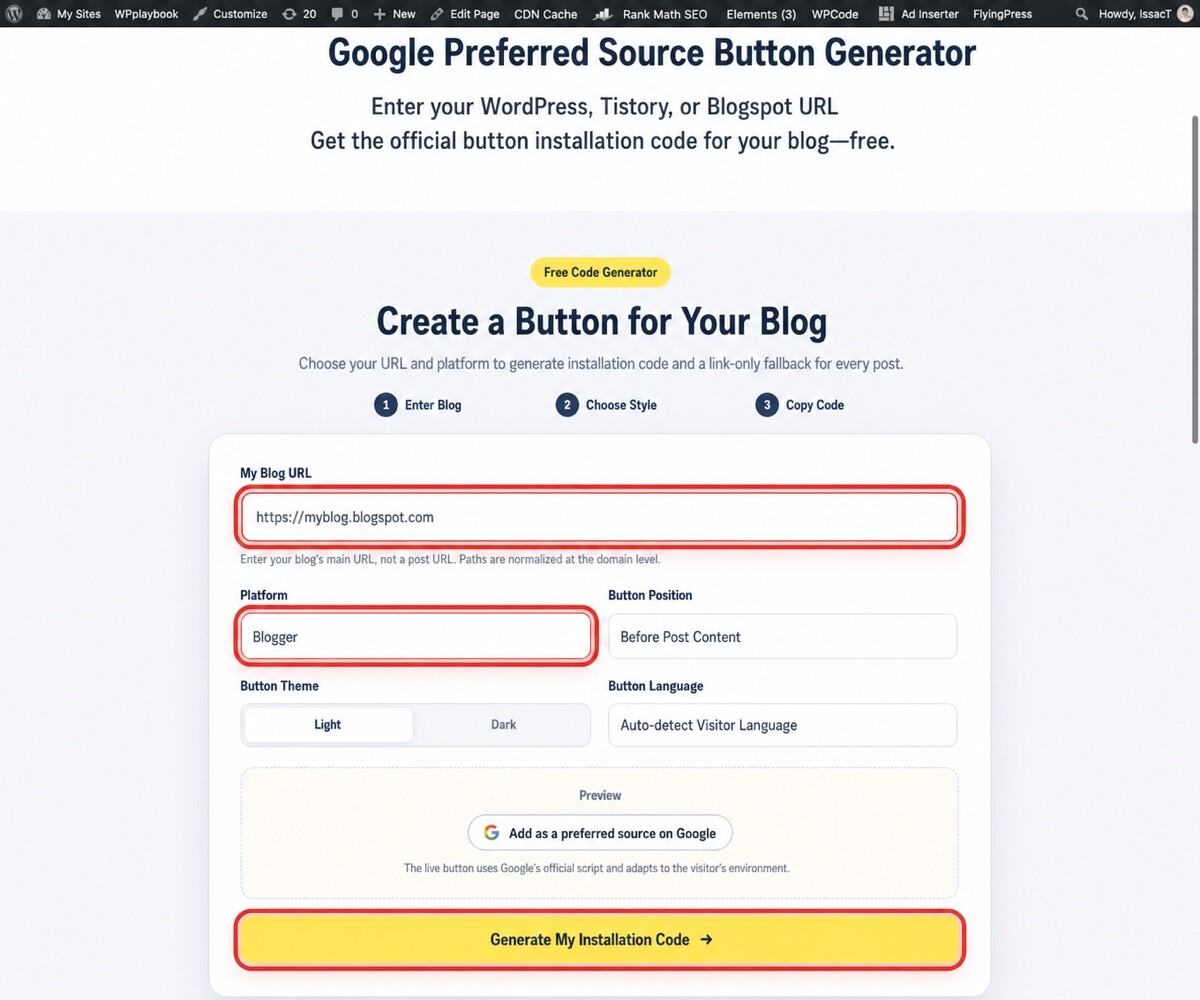
1. Generate code for Blogger
- Open the Google Preferred Sources Button Generator.
- Enter your public Blogspot or custom-domain address.
- Select Blogger (Blogspot).
- Choose before-post or after-post placement.
- Select the button theme and language.
- Click Generate My Installation Code and copy the recommended code in full.
2. Back up the Blogger theme
Choose the blog you want to edit in Blogger Admin and open Theme. From the menu for the active theme, select Backup and download the XML file. This lets you restore the theme quickly if an XML error occurs or the design breaks.
3. Add the code to the theme HTML
- Go to Theme → Edit HTML in Blogger Admin.
- Click inside the HTML editor and search for
<data:post.body/>. - For before-post placement, paste the generated code before the tag. For after-post placement, paste it after the tag.
- Save the theme.
- Open an individual post and confirm that the button appears.
Some themes contain <data:post.body/> more than once. In that case, find the location inside the Blog1 widget that renders the actual post body. A wrong location can place the button on archive pages or create duplicates, so test both the homepage and a single post after saving.
Why Blogger needs different generated code
Blogger themes are stored as XML. Ordinary HTML can trigger a save error because of attributes such as async or incompatible quotation marks. WPlaybook’s generator uses XML-safe syntax such as async='async' and a Blogger condition that limits output to individual post pages.
If the button does not appear
- Test an individual post URL rather than the homepage.
- If the post-body tag appears more than once, try the location associated with the actual post body.
- Confirm that both the opening and closing
<b:if>tags were copied. - Clear the browser cache or test in an incognito window.
- Check whether a custom theme loads the post body later with JavaScript.
Frequently asked questions
Can I use an HTML/JavaScript gadget?
A gadget can keep the button in a sidebar or gadget area. To place it before or after the article itself, edit the theme HTML around <data:post.body/>.
Do I need to edit every post?
No. Install the code once in the post-body template, and it will apply to both existing and future posts that use the theme.
What happens if I change themes?
Code added manually to the old theme may not be included in the new one. Reinstall the generated code after changing themes.
For more detail, consult Blogger’s official documentation for editing theme HTML and using layout data tags.
You may also like
by Google AdSense

Issac Lee is the founder of WPlaybook and Statistics Playbook, a data analytics education brand. Since 2021, he has built and operated online businesses, produced more than 500 videos, and created and sold courses and digital content in collaboration with companies. He currently manages the development, SEO, and content operations of more than 40 business websites and specialist blogs. His work focuses on WordPress funnels, technical SEO, content strategy, community-led monetization, and sustainable online business.
View all posts by Issac Lee